CrewSheet vs Spreadsheet-Based Scheduling

CrewSheet vs Spreadsheet-Based Scheduling
Copy-pasting crew assignments from Google Sheets and firing off group texts eats 30–90 minutes each morning for many small trades operators and causes missed starts and double-bookings. This crewsheet vs spreadsheet-based scheduling comparison examines CrewSheet, Google Sheets plus group texts, and enterprise platforms so small trades operators can choose the best day-of crew scheduling workflow. CrewSheet is crew-scheduling and communication software that provides a drag-and-drop day board and one-way SMS sends without forcing field workers to create logins. Our analysis contrasts spreadsheet fragility, group-text template breakage, and enterprise rigidity while pointing to CrewSheet's day board documentation and the getting-started guide to show how schedules are built and sent in about 30 seconds. Which workflow wins on speed, fewer mistakes, and crew simplicity?
CrewSheet, Google Sheets plus group texts, and enterprise platforms are the primary options. Which scheduling options should I compare?
Compare three practical workflows: CrewSheet, Google Sheets plus group texts, and enterprise construction platforms. Each matches a different day-of scheduling need: quick, low-cost flexibility; a structured single-day board with push SMS; or full-feature breadth with heavy implementation. Read the short profiles below to match tool to the problem you face on the jobsite.
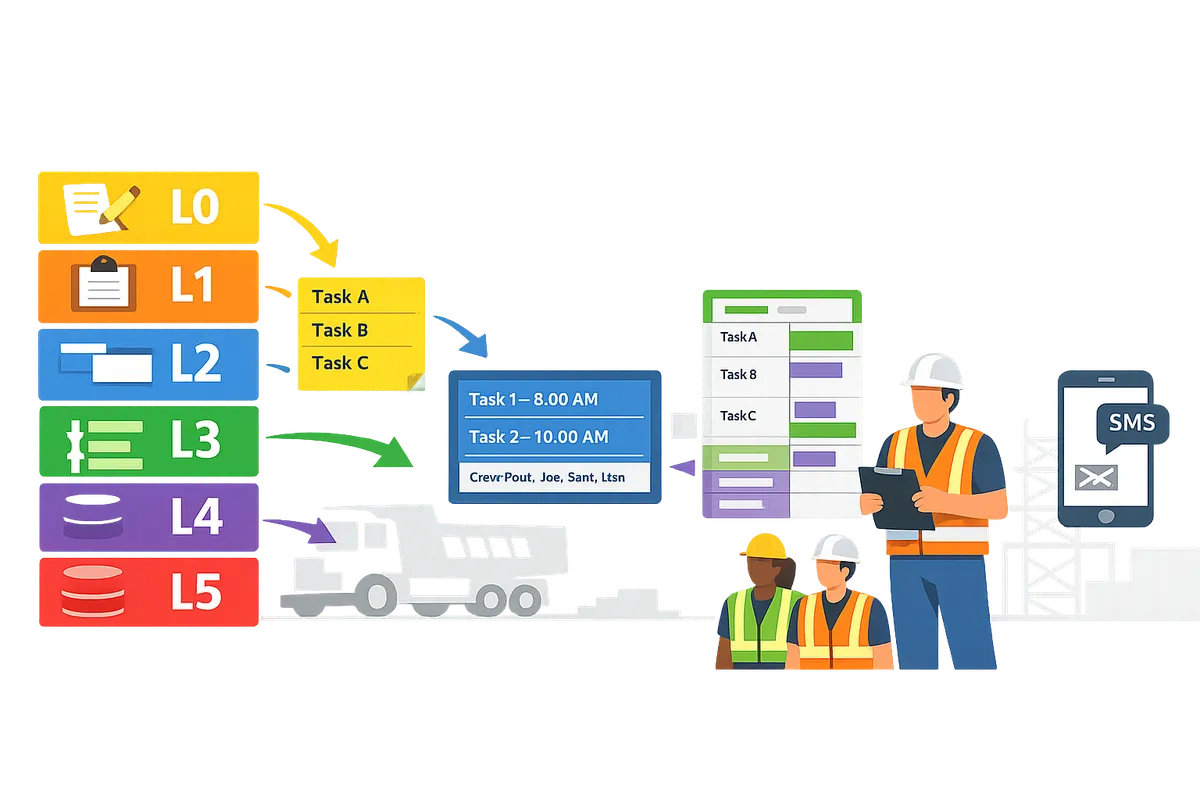
CrewSheet is purpose-built crew-scheduling software for trades that replaces spreadsheet-plus-SMS workflows with a drag-and-drop day board and one-way SMS/email notifications. 🛠️
CrewSheet is a scheduling tool that focuses on the daily staffing loop: build the board, assign crew, and notify without requiring field-worker logins. For example, an operator drags names from a PTO-aware pool onto job cards and sends pre-formed message templates to assigned crew. Core primitives you will use every day:
- Day (board) view with jobs as side-by-side cards.
- Drag-and-drop crew assignment and drag-between-jobs.
- Single-use enforcement to prevent same-day double-booking.
- PTO-aware pool (crew on PTO are visible but gray).
- No field-worker logins; one-way SMS/email dispatch.
- Message templates with live SMS segment counter and an audit trail.
CrewSheet removes the manual copy-paste and fragile message scripts that break in spreadsheet workflows while avoiding enterprise complexity. See our Getting Started guide in Welcome to CrewSheet and the schedule board documentation for step-by-step usage and examples.
Google Sheets plus group texts is a flexible, low-cost workflow that becomes fragile as crew size and schedule churn increase. 📋
Google Sheets plus group texts is a spreadsheet-based workflow that uses an ad-hoc calendar or sheet as the system of record and separate SMS or group-messaging for notifications. Typical characteristics operators encounter:
- Free or low-cost entry and fully custom templates.
- Manual copying and pasting between days and message tools.
- PTO stored in a separate system or sheet.
- Message scripts that break when a column moves or a template is edited.
Hidden business costs are real: time spent fixing scheduling mistakes, missed job starts, emergency overtime, and data scattered across multiple systems. For many small trades operators the morning routine becomes 30–90 minutes of reconciliation and last-minute calls.
⚠️ Warning: When PTO lives in a different sheet, accidental scheduling on an officer's day off is common. That leads to lost crew-hours and avoidable emergency calls.
If you want a deeper comparison of how scheduling software fixes these exact frictions, read our analysis in Scheduling Software for Construction Crews and the beginner's guide in Crew Scheduling Software for Construction Trades.
Enterprise construction platforms are full project and workforce-management suites that offer breadth at the cost of implementation time and rigid field workflows. 🏗️
Enterprise construction platforms are comprehensive systems that combine scheduling, compliance, timekeeping, and reporting but often require field-worker logins and formal role enforcement. These platforms deliver benefits for large sites with complex compliance needs but introduce tradeoffs for small trades teams:
- Strong audit and compliance features and tighter ERP integrations.
- Require per-worker accounts or mobile app adoption.
- Rigid crew/role rules that can block practical on-the-ground decisions like overstaffing or letting a foreman act as a regular crew member.
- Longer implementation, training, and change management overhead.
For operators who need flexibility, CrewSheet offers a middle path: structured day-board scheduling and push SMS without forcing every field worker to create an account. For a feature-led vendor roundup that includes enterprise options and trade-focused alternatives, see Crew Scheduling Apps: Best for Construction 2026.
| Option | Cost & setup | Flexibility | Field-worker logins | PTO awareness | Best for |
|---|---|---|---|---|---|
| CrewSheet | Low to moderate setup; focused onboarding | High — drag-and-drop, overstaff allowed | No | Visible per-day in the pool | Small-to-midsize trades that need fast, reliable day-of dispatch |
| Google Sheets + group texts | Minimal cost; manual setup | Very high but fragile | No | Separate; easy to miss | Operators on a tight budget who tolerate manual work |
| Enterprise platforms | High implementation and license cost | Lower flexibility; policy-driven | Yes, usually required | Integrated | Large GC or projects needing compliance and ERP integration |
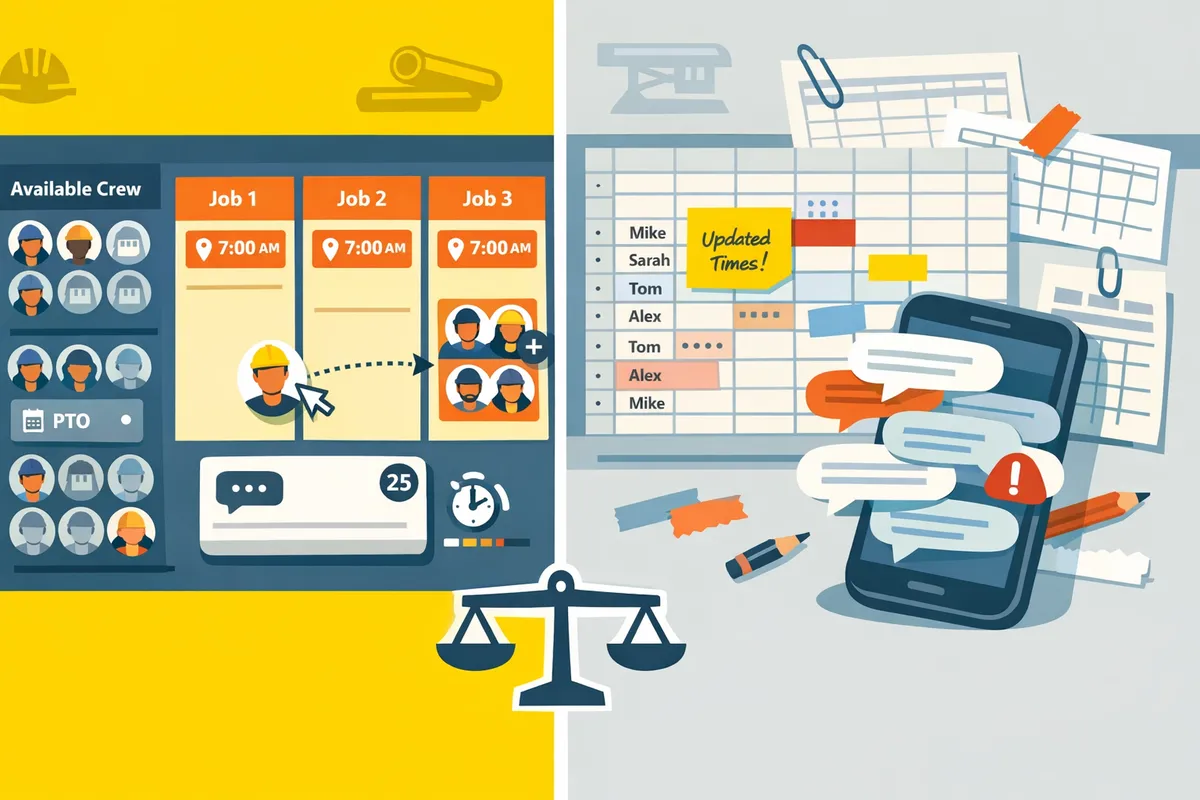
Feature differences determine day-of scheduling success. How do CrewSheet and spreadsheet-based scheduling compare feature by feature?
Feature choice decides whether morning dispatch is minutes of work or an hour of rework. Operators need fast, PTO-aware sends, reliable double-booking protection, and low friction for field crews. This section compares the concrete features that make day-of scheduling succeed or fail.
Comparison criteria 📊
These eight criteria capture the operational attributes operators care about for day-of scheduling. Each criterion is defined and given a practical metric or example so you can compare tools objectively.
Time-to-send (seconds). Time-to-send is a performance metric that measures how long it takes to build a day board and notify everyone by SMS or email. For example, copy-pasting rows into multiple group messages can take 30–90 minutes each morning for small crews; purpose-built day boards cut the manual steps.
Day-board vs calendar grid fit. Day-board vs calendar grid is a UI classification that determines whether the tool treats jobs as full-day assignments or hour-by-hour slots. Trades with full-day jobs prefer a side-by-side job board; calendar grids add unnecessary complexity and proofing time.
Double-booking prevention. Double-booking prevention is a constraint mechanism that blocks assigning the same person to two jobs the same day. A single-use rule avoids lost starts and last-minute scramble; spreadsheets require manual checks and are prone to errors.
PTO visibility. PTO-aware scheduling is a visibility feature that shows planned time off in the same place you assign crew. When PTO lives elsewhere, operators accidentally schedule people on days off and trigger emergency reassignments.
Field-worker login requirement. Field-worker login requirement is an adoption cost that measures whether every crew member must create credentials to receive schedule details. Tools that push SMS or email to phone numbers reduce field friction and training time.
Message templating and compliance. Message templating and SMS compliance is the messaging layer that keeps scripts correct and legal. A template editor with a live segment counter and built-in A2P controls prevents broken templates and carrier rejections.
Import/export and ERP bridging. Import/export and ERP bridging is the data-handshake capability that moves jobs and crew between accounting/ERP and the schedule board. CSV import suffices for many small shops; built-in ERP sync reduces manual reconciliation for larger operations.
Total cost of ownership (time + subscription). Total cost of ownership is an operational math problem: operator hours, subscription fees, and error costs. Low-priced spreadsheets can carry hidden daily labor costs; specialist tools trade subscription dollars for predictable time savings.
For a primer on why a day-board matters for trades, see our guide on Scheduling Software for Construction Crews.
Side-by-side feature table 🧾
The table below contrasts Spreadsheet + group texts, CrewSheet, and enterprise platforms across the eight criteria so you can scan tradeoffs quickly.
| Criteria | Spreadsheet + group texts | CrewSheet | Enterprise platform (e.g., Assignar) |
|---|---|---|---|
| Time-to-send (seconds) | Manual steps. 30–90 min daily for some teams. | Minutes to assign and push messages. (Designed for day-of simplicity.) | Longer initial setup; automated at scale but requires proofs and training. |
| Day-board vs calendar grid | Typically a calendar or table in Sheets; not optimized for side-by-side jobs. | Native day-board with job cards side-by-side. Trades-first UX. | Often calendar-first and hour-based; stronger for multi-phase projects. |
| Double-booking prevention | Manual checks; high human error risk. | Single-use enforcement blocks same-person multi-assignments. | Rule-based enforcement but may be rigid (can block overstaffing). |
| PTO visibility | PTO often stored elsewhere; scheduling mistakes likely. | PTO appears grayed-out in the pool for the selected date. | PTO usually integrated but requires full adoption and accurate sync. |
| Field-worker login requirement | No logins; SMS via personal phones (manual). | No field-worker logins; push SMS/email only. | Typically requires a login for each worker. |
| Message templating + compliance | Copy-paste scripts; templates break easily; carrier compliance unmanaged. | Pre-formed templates with segment counter and A2P compliance controls. | Advanced templating and compliance but adds admin overhead. |
| Import/export & ERP bridging | CSV export/import manual; liable to data drift. | CSV import bridge; planned ERP integrations in roadmap (keeps day-of simple). | Deep ERP integrations, but long implementation and higher cost. |
| Total cost of ownership (time + subscription) | Low subscription cost but high daily labor cost and error risk. | Flat subscription aimed at replacing manual SMS and saving operator time. Intentionally trades breadth for day-of simplicity. | Higher license and implementation cost; broader capabilities beyond day-of scheduling. |
💡 Tip: Always keep PTO entries in the scheduling tool you use so grayed-out availability prevents accidental assignments.
For a full walkthrough of the CrewSheet day-board, visit our Welcome to CrewSheet documentation.
Real-world scenario comparisons 🔍
These three representative operations show practical outcomes when using CrewSheet versus spreadsheet-based scheduling. Each scenario includes typical time savings, error types avoided, and the user-friction difference.
Scenario A — 8-person coatings crew that rotates jobs daily. For many coatings crews, morning dispatch is repetitive and error-prone. With spreadsheets and group texts, an operator typically spends 30–90 minutes building messages, pasting addresses, and sending multiple group messages; mistakes include double-bookings and wrong addresses. Using CrewSheet's day-board and single-use enforcement, the operator assigns the crew visually, sees PTO in the pool, and sends start-time SMS without asking crew to log in. The practical outcome: fewer missed starts, far fewer mid-morning calls, and the scheduler spends minutes on the send step rather than an hour.
Scenario B — 20-person HVAC shop with recurring sites. A 20-person shop needs reliable import/export and predictable messaging for recurring sites. Spreadsheets force repeated manual copy between dates and inconsistent templates; PTO and supervisors are easy to miss. CrewSheet reduces re-entry by letting operators copy schedules between dates and use templates with a live segment counter. The result is reduced rework, cleaner audit history for field messages, and lower risk of scheduling someone on PTO. For shops considering ERP sync later, CrewSheet's CSV bridge keeps the day-of workflow lean while planning a phased integration.
Scenario C — Multi-site contractor evaluating enterprise adoption. For a contractor with complex compliance, site-level timekeeping, and many integrations, enterprise platforms offer breadth but require every worker to adopt logins and take weeks to configure. The business cost includes training, migration, and loss of flexibility (for example, rigid crew-size rules). CrewSheet presents an intermediate option: preserve spreadsheet flexibility but add day-board controls, single-use rules, and push SMS so field crews require no logins. This lowers adoption friction for mobile foremen while keeping enterprise adoption as a deliberate, later-stage decision.
For decision-makers who want a practical checklist for picking a middle-ground tool, read our Crew Scheduling Software for Construction Trades guide.
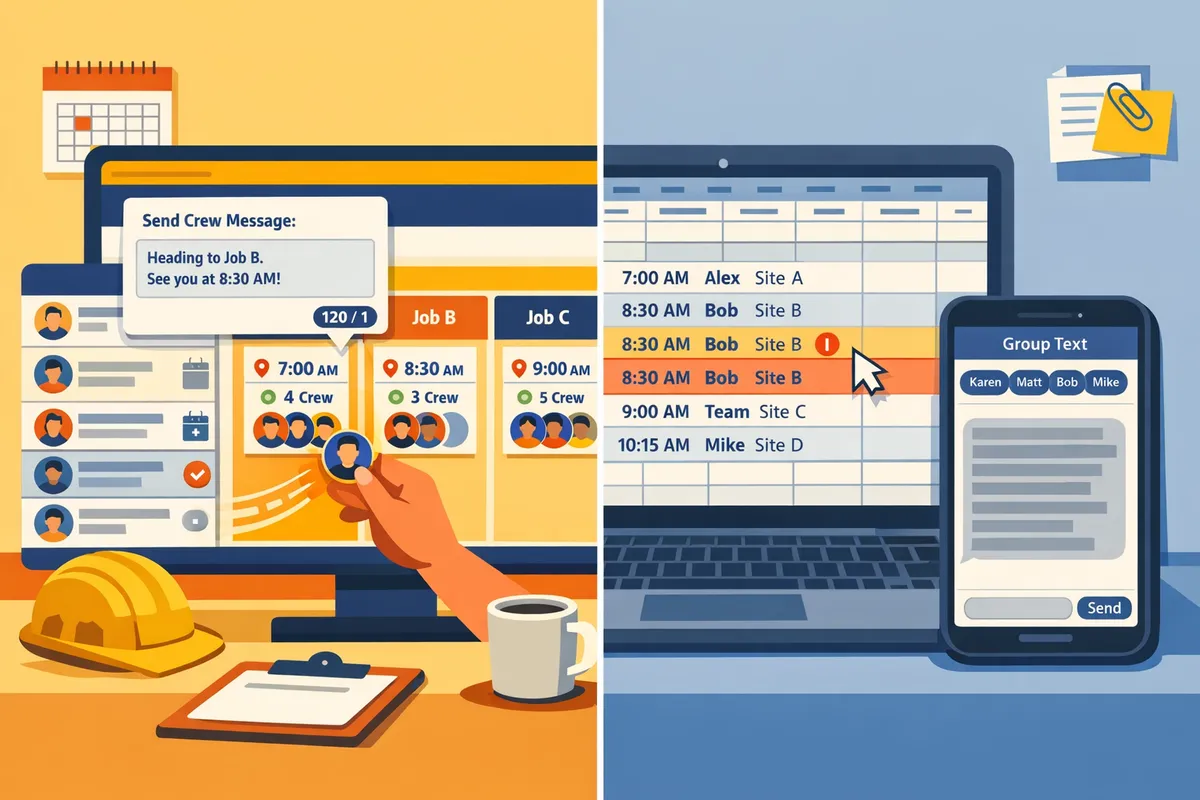
CrewSheet is the practical middle ground for most trades operators. Which option should you choose and how do you move from spreadsheets to CrewSheet?
CrewSheet suits most small-to-midsize trades contractors that need fast, PTO-aware day-of scheduling without onboarding every field worker to an enterprise platform. It replaces fragile Google Sheets plus group texts with a drag-and-drop day board and managed SMS templates while keeping field workers off a login roster. Below are concise recommendations by company size, a low-disruption six-step migration playbook, and a simple ROI framework to decide whether to switch.
Which tool to pick by company size and workflow 👥
Small teams of 5–15 typically find CrewSheet delivers the best trade-off between speed, error reduction, and cost. CrewSheet removes the daily copy-paste and group-text work while preserving the flexibility operators expect from spreadsheets.
- One-person operation (1 tech, owner-operator). Stay on Google Sheets until growth forces repeatable scheduling. Spreadsheets keep costs down, but expect rising rework as jobs and subcontractors increase. Keep a daily template for quick sends.
- Small teams (5–15 field workers). Choose CrewSheet. The operator saves morning hours, reduces supervisor callbacks, and avoids accidental PTO bookings. Our comparison of scheduling software for construction crews explains why day-board scheduling and one-way SMS remove most of the morning churn.
- Midsize to enterprise (20+ or ERP needs). Evaluate enterprise platforms only if you need deep ERP integration, timekeeping, and compliance workflows tied to payroll. CrewSheet remains useful as a simple dispatch front-end for daily sends while you assess integrations.
Each choice ties directly to measurable business consequences: the cost of wasted operator hours, the risk of missed starts or double-bookings, and ongoing supervisor burden when the schedule is fragile.
Step-by-step migration from Google Sheets + group texts to CrewSheet 🔁
You can migrate from Google Sheets and group texts to CrewSheet in six low-disruption steps. Follow this checklist to minimize mistakes and keep a reliable fallback.
- Audit current sheets and message scripts. Note columns, job numbers, start times, and every variant of your SMS templates. Record PTO locations and who maintains them.
- Export jobs and crew to CSV from your accounting sheet. Include name, phone, email, role, job number, address, start time, and ideal crew size.
- Import CSV into CrewSheet. Use the smart column auto-detect; confirm phone and email mapping in the preview. See our Welcome to CrewSheet setup guide for CSV tips.
- Build the day board. Drag crew from the pool into job cards, mark PTO entries, and confirm the single-use rule prevents double assignments. Use the schedule board docs to learn filters and roster controls: the schedule board.
- Create message templates and run test sends to a small pilot group of foremen and admins. Verify character counts, job addresses, and start-time formatting.
- Roll out and keep the spreadsheet as a read-only archive for 30 days. Use it only for reconciliation and payroll cross-checks while staff adjust.
Common pitfalls and how CrewSheet avoids them:
- Fragile SMS scripts break when someone edits a cell. CrewSheet stores templates with a live segment counter so operators cannot accidentally truncate messages.
- PTO living in another sheet causes accidental assignments. CrewSheet shows PTO in the crew pool for the selected date, preventing those mistakes.
- Manual re-entry creates typos on addresses and job numbers. CSV import preserves exact job metadata and reduces rework.
💡 Tip: Run the pilot sends on a Monday for a light schedule day and require supervisors to confirm receipt by phone for the first three days. Keep the spreadsheet read-only to prevent drift.
Cost, ROI, and risk trade-offs to justify the switch 💰
Estimate ROI by multiplying daily operator time saved by the operator's loaded hourly cost, then add avoided losses from missed starts and double-bookings. This gives a straightforward, conservative breakeven view.
- Time-saved example. For example, if an operator saves 45 minutes per day and their loaded hourly cost is $40, that equals $30 saved per workday. Over 250 workdays that is $7,500 per year in labor cost avoided. Use your own numbers to model breakeven.
- Error-avoidance value. Quantify avoided costs from a single missed start: lost billable hours, emergency overtime, or reassigning crews. Even one avoided double-booking per month can justify a subscription for many small contractors.
- Cost of over-architecting. Enterprise platforms carry higher license fees, forced field logins, and implementation time. That raises upfront cost and increases change-management work. Many teams find those costs exceed the operational gains when daily scheduling is the only need.
- Risk of staying on spreadsheets. Spreadsheets fragment data, hide PTO, and rely on manual SMS that breaks with small edits. Those risks translate into recurring rework, higher supervisor load, and compliance gaps when you need audit trails.
CrewSheet reduces these risks by keeping the scheduling loop concise: CSV import for accurate job data, a PTO-aware pool to avoid double-booking crews, and template-based SMS to prevent broken scripts. For a practical decision framework and feature checklist tailored to trades, see our comparison guide on crew scheduling software for construction trades and the round-up in Crew Scheduling Apps: Best for Construction 2026.
Frequently Asked Questions
This FAQ answers the practical buyer questions in the crewsheet vs spreadsheet-based scheduling comparison and outlines next steps for migration. It focuses on day-of scheduling, conflict prevention, CSV import, views, PTO handling, and what to keep from your Google Sheets archive.
How does CrewSheet avoid double-booking crews? 🛑
CrewSheet enforces a single-use rule that prevents one crew member from being assigned to more than one job on the same day. The schedule board shows the available pool for the selected date and blocks or flags a drag-and-drop action if a person is already assigned elsewhere. Schedulers can still overstaff a job when intentionally needed, but the interface makes single-use conflicts visible so accidental double-bookings stop before messages go out. See the schedule board documentation on our website for screenshots and the conflict UX.
Do crew members need to create logins? 📱
No. CrewSheet sends schedules by SMS and email so field workers never need an account or an app. Messages are one-way outbound notifications designed for crews who act on instructions instead of checking an inbox. This keeps the workflow low-friction for foremen and crew members while letting office schedulers manage the board from a single place; read our no-login crew scheduling solution to understand the trade-offs.
How do I import jobs and crew from a spreadsheet? 📂
Import jobs and crew via CSV by mapping your spreadsheet columns to CrewSheet fields (name, phone, email, role, job number, start time). Upload a small sample CSV, map columns in the importer UI, verify PTO states and phone formats, and run a test import for one or two records before full cutover. After a successful test, import the full file and review the day board for missing fields or mismatched roles.
💡 Tip: Export a 10–20 row CSV from Google Sheets first and confirm phone numbers use a consistent format (for example, +12223334444) to avoid delivery issues during your first send.
See our getting-started guide for step-by-step import notes and field auto-detection behavior.
What is day board vs calendar grid and which should I use? 📅
The day board is a side-by-side job card view that treats jobs as full-day assignments and emphasizes start time; the calendar grid places jobs on hour-by-hour slots. Use the day board for full-day construction jobs where only a start time matters (for example, coatings or single-day site crews). Use the calendar grid when you must schedule multiple shifts, overlapping hourly bookings, or recurring hour-based work. The day board is CrewSheet's primary view for trades operators who move names, hit send, and notify crews quickly.
How does CrewSheet handle PTO? 🌴
CrewSheet displays PTO in the available pool for the selected date and grays those crew members out so they cannot be accidentally assigned. PTO appears with a label and date range in the pool, which reduces scheduling errors when building the board for a specific day. You can enter PTO manually or mark it during import so the pool always reflects who is actually available for the target date.
Will switching remove the need for my spreadsheet archive? What happens to my existing Google Sheets records? 🗄️
Keep your Google Sheets as a read-only archive for the first 30 days and export CSV snapshots for payroll and ERP reconciliation during parallel runs. During migration, run CrewSheet and your spreadsheet side-by-side for a few pay cycles: import a tested CSV, send schedules from CrewSheet, and compare delivered rosters to your payroll exports. After operational confidence (often 2–4 weeks), adopt CrewSheet as the single-day operational source while retaining spreadsheet snapshots for historic audit or accounting needs. Our migration advice and the crew scheduling guides on our website offer sample timelines and checklist items to reduce reconciliation work.
Choose the approach that reduces daily rework and prevents double-booking.
Spreadsheets plus group texts keep flexibility but cost hours and invite mistakes; enterprise platforms add cost and complexity. This crewsheet vs spreadsheet-based scheduling comparison shows Crew Sheet sits in the middle by keeping the board-like workflow operators trust while cutting the manual steps that cause missed starts and schedule clashes. Operators who value speed and fewer errors will spend less time fixing the day and more time billing work.
See our Scheduling Software for Construction Crews post for a broader overview of trade-focused options and why a spreadsheet alternative for crew scheduling matters for small trades operators. Take the next step with Crew Sheet: book a demo to watch a 15-minute walkthrough of the day board and sending flow and decide if it fits your crew's routine. For hands-on setup instructions, check the Welcome to CrewSheet guide.