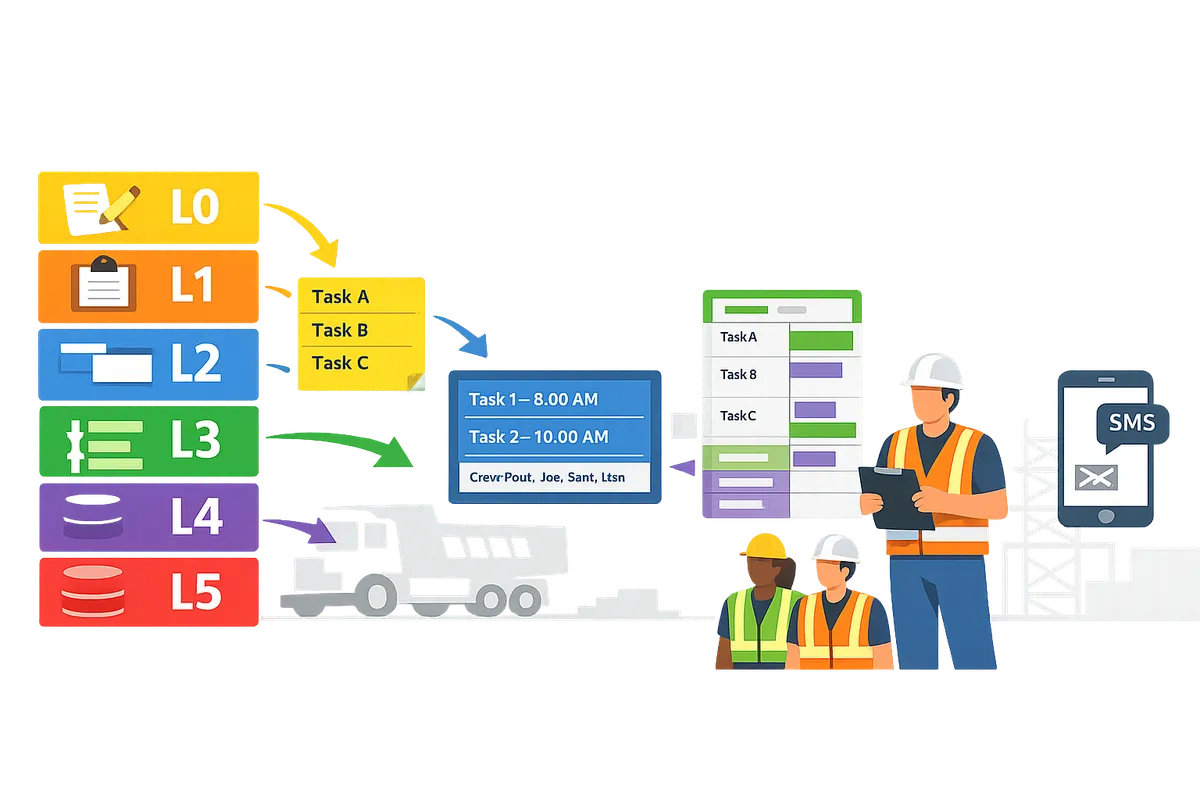
Crew Scheduling Software for Construction Trades

Crew Scheduling Software for Construction Trades
A single double-booked worker or a missed SMS can stall a small trades crew for hours. Crew scheduling software is workforce scheduling that replaces fragile Google Sheets and group texts with a day-board and push-based SMS for construction trades. This beginner's guide compares the main options, explains core concepts, and shows how CrewSheet replaces spreadsheets and manual SMS for small-to-midsize trades contractors. Our guide starts at zero and builds clear, actionable checklists for the operator who runs the board. CrewSheet keeps scheduling flexible, avoids forcing field-worker logins, and lets an operator drag names, hit send, and notify the crew in about 30 seconds. Later sections include side-by-side comparisons, SMS templates, and a simple four-step routine you can try.
What are the fundamentals of crew scheduling software for trades?
The fundamentals are a day-based job board, a rostered pool of crew, PTO-aware availability, a single-use rule, and push-based no-login communications. These elements solve the four daily problems operators actually face: assigning the right crew to a single-day job, avoiding double-booking, keeping PTO visible, and getting the schedule to workers quickly. The rest of this section defines the core terms trades operators use and shows how a day-board workflow fits coatings, HVAC, and similar specialty crews.
What is a job, crew, and day board in scheduling?
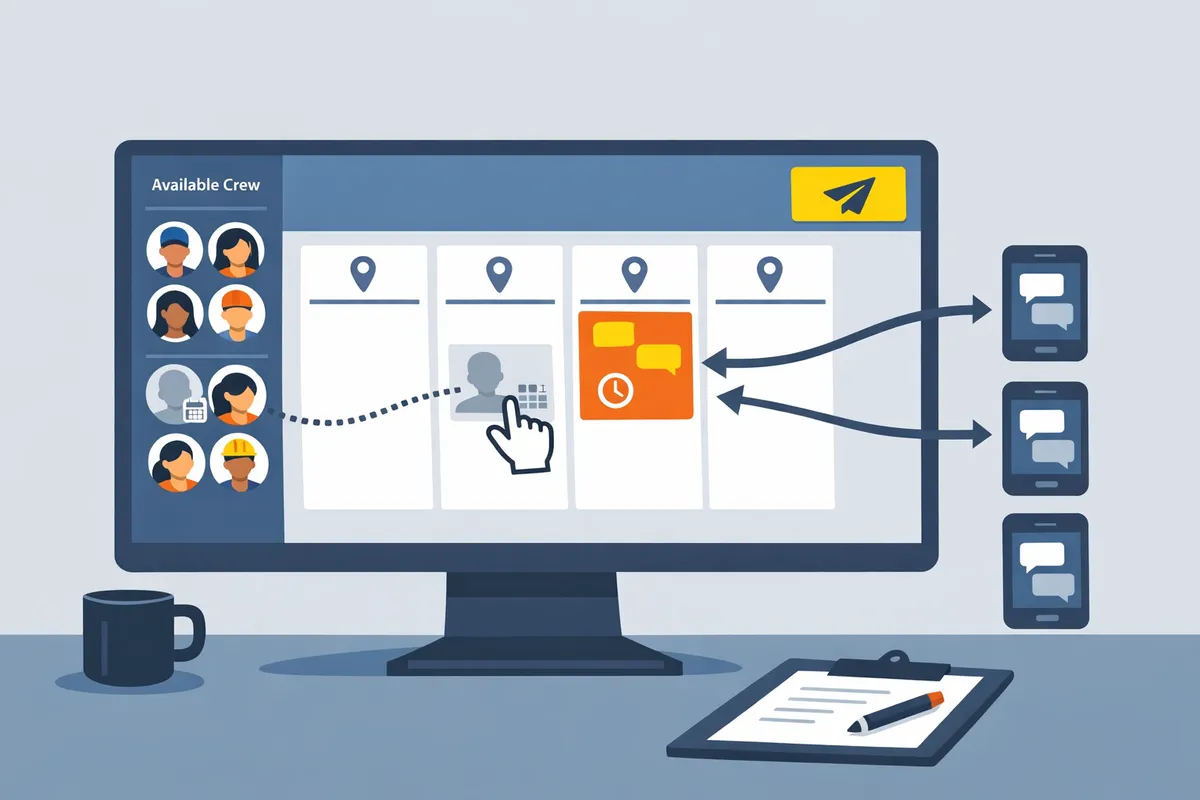
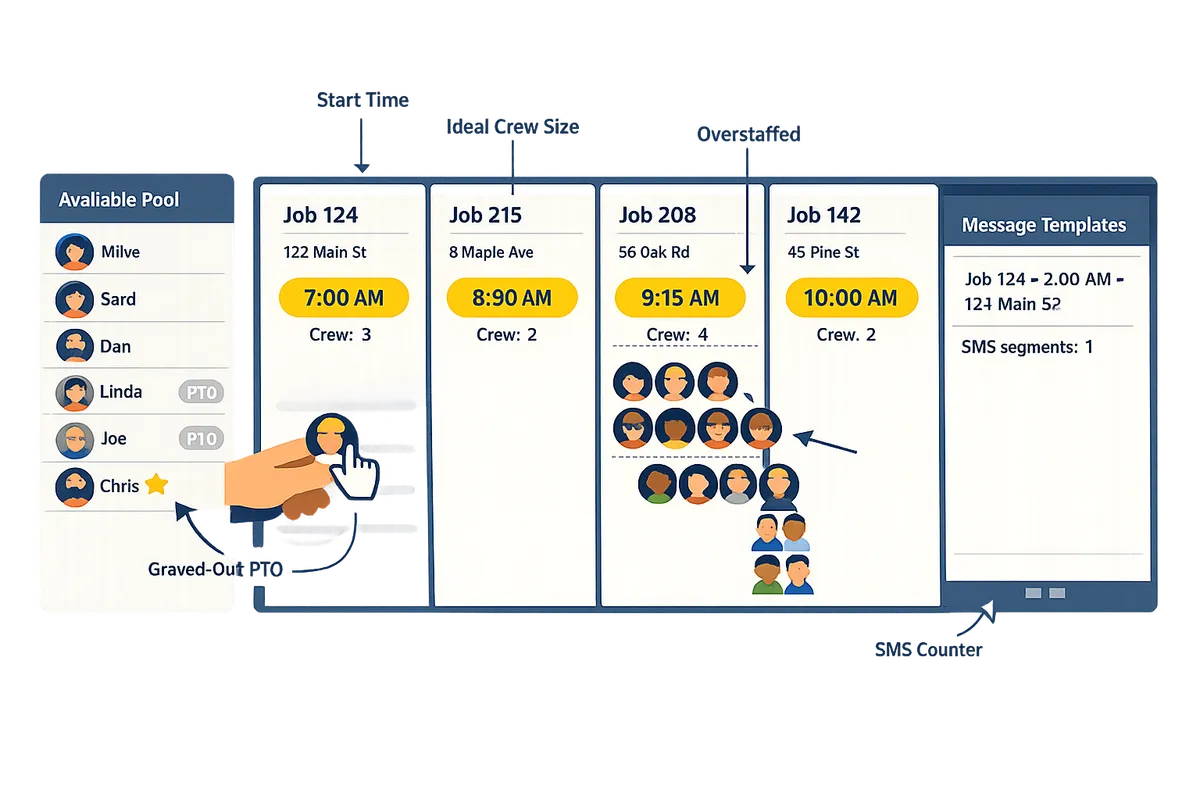
Job is a scheduling unit that represents a single-day assignment with a number, address, start time, and an ideal crew size. Crew is the group of individual workers assigned to that job for the day. Day board is a date-specific visual board that shows jobs as side-by-side cards and the available pool in a sidebar so operators assign by dragging names onto job cards.
A typical job card shows the job name, address, start time, ideal crew size, and a small roster. Trades like coatings or HVAC work full days at shifting sites, so a day board is a better mental model than an hourly grid; only the start time usually matters. Rosters live on the job card so office staff and foremen see who is assigned at a glance and can copy that roster to another date.
CrewSheet implements this day-board model with drag-and-drop rosters and per-job start-time overrides, keeping the interface close to how schedulers already think when they use Google Sheets but removing manual re-entry.
How does PTO-aware scheduling prevent double-booking? 🛑
PTO-aware scheduling displays paid time off directly in the available pool so operators cannot accidentally assign someone on their day off. In spreadsheets PTO often lives on a separate tab or in a color code that goes stale; schedulers then copy names into jobs and only discover conflicts after someone calls in upset.
Common spreadsheet failure modes include hidden PTO rows, stale color legends, and manual copy-paste mistakes that overwrite availability. The business costs are concrete: emergency last-minute hires, delayed starts, angry foremen, payroll disputes, and unplanned overtime. CrewSheet shows PTO as grayed-out, labeled entries in the pool and blocks assignment so the operator sees unavailability while building the board.
⚠️ Warning: Scheduling someone on PTO can trigger wage disputes and safety gaps; surface PTO in the same place you build the schedule.
What is the single-use rule and why it matters?
The single-use rule prevents a crew member from being assigned to more than one job on the same day. Double-booking is the single most common source of same-day conflicts for small trades operators because crew rotate between rotating sites and a missed check in a spreadsheet causes overlap.
When a worker is double-booked the usual outcomes are emergency calls, missed starts, and rework when one site waits for missing labor. That creates lost productive hours and damages customer trust. CrewSheet enforces the single-use rule by blocking second-day assignments and highlighting conflicts on the board so schedulers fix them before sending messages.
Avoiding same-day conflicts reduces reactive phone time for your office and lowers the chance you must scramble a replacement crew mid-morning. For operators switching from manual methods, enforcing single-use often pays back in fewer emergency mobilizations and smoother job starts.
How does a no-login crew app model work?
A no-login crew app uses outbound SMS and email so field workers receive job details without creating accounts, installing an app, or signing in. Adoption rates rise because foremen and crew do not need training or credential management; they simply get a message with location and start time.
Systems that force every worker to have a login increase friction: missing passwords, outdated app installs, and delayed rollouts. For small-to-midsize trades contractors that problem shows up as low uptake and continued reliance on group texts and spreadsheets. CrewSheet operates on a push-based model: operators pick a template, send the day's assignments by SMS/email, and the crew receive instructions without any account setup. The communication model is intentionally one-way outbound; CrewSheet logs deliveries but does not require crew confirmations, matching how crews actually work in the field.
Which features should trades teams compare when evaluating crew scheduling software?
The highest-impact features to compare are drag-and-drop assignment, push-based SMS, PTO visibility, and a flexible day board that allows overstaffing. These features directly reduce double-bookings, last-minute calls, and the time spent building and sending the daily schedule. Focus on objective criteria you can test in a 15–30 minute trial, not marketing lists.
Feature comparison table: Crew Sheet vs spreadsheets vs Assignar
This table compares usability, setup time, field adoption friction, cost profile, PTO handling, day board scheduling, no-login communication, and single-day assignment enforcement. Use the table to screen vendors quickly and rule out options that fail basic operational needs.
| Feature | Crew Sheet | Spreadsheets + SMS | Assignar |
|---|---|---|---|
| Usability (scheduler) | Drag-and-drop day board designed for fast edits and quick sends. | Familiar but fragile: copy/paste errors and manual proofing. | Powerful UI but often complex; requires training. |
| Setup time | Short: CSV imports get you running the same day. | Instant, but manual processes remain. | Long: implementation and role mapping required. |
| Field adoption friction | Low: no worker logins; schedule arrives by SMS. | Medium: group texts work but templates break easily. | High: each field worker typically needs a login. |
| Cost profile | Predictable monthly fee with unlimited sends. | Low software cost but high labor cost for manual work. | High license and implementation costs for smaller crews. |
| PTO handling | PTO visible in the pool for the scheduled day to prevent bookings. | Separate sheet or column prone to being overlooked. | Built-in but often enforces rigid rules that block quick fixes. |
| Communication model | One-way SMS + optional email with managed templates. | Ad-hoc texts or third-party SMS tools; no compliance controls. | Two-way options exist but add admin overhead and required logins. |
| Day board scheduling | Native day-board with job columns and start-time overrides. | Unstructured; requires manual layout. | Available but often tied to stricter rules and workflows. |
| No-login communication | Yes. Workers receive instructions without app installs. | Yes, via SMS, but without templates or segment counters. | Usually no. Platform expects users to sign in. |
| Single-day assignment enforcement | Enforced by default to stop double-booking. | Manual checks needed. | Enforced, sometimes too rigid for on-the-fly overstaffing. |
What to look for in a foreman scheduling app 🧭
A good foreman scheduling app shows a filtered "who's on my job tomorrow" view and treats foremen as draggable resources. Foremen must appear like any crew member so a scheduler can assign or move them without complex role changes. Crew Sheet provides a supervisor view that filters the day board by job and lists assigned crew, which speeds handoffs between office and field.
Rigid role enforcement causes friction for small crews because foremen rotate between jobs and need quick reassignment. For example, a coatings crew with a single foreman may switch sites mid-morning; a system that requires changing roles or creating exceptions slows the whole team. Look for these capabilities: a filtered foreman roster, drag-to-reassign, and quick bulk moves between dates.
Operational checklist for foreman workflows:
- Verify the app shows a per-job crew list for the next workday.
- Confirm foremen can be moved like any other crew member.
- Test a mid-day reassignment to ensure start-time overrides and audit logging remain simple.
How should the communication model work for crews? 📩
The best model is one-way, compliant SMS plus optional email, driven by message templates with an active SMS segment counter. One-way SMS avoids inbox management and keeps the scheduler from becoming the communications bottleneck. Crew Sheet sends outbound SMS without requiring field-worker accounts and includes template safety features to prevent broken messages.
Compliance matters: use a platform that handles 10DLC/A2P registration and enforces template-based messaging so carrier approvals remain valid. Two-way chat often fails adoption on jobsites because crews rarely reply to schedule messages and replies create extra workload for office staff to triage. Templates and a live segment counter reduce carrier fees and prevent broken texts from truncating critical details like job address or start time.
⚠️ Warning: Avoid sending protected health or sensitive personal information over SMS. Keep messages to job, start time, and logistics.
What integrations and import options matter? 🔌
Start with robust CSV import and add SSO and ERP hooks later to reduce repeated manual entry. CSV import minimizes implementation risk and gets you operational quickly; Crew Sheet supports smart CSV mapping for jobs and crew so the scheduler can go from spreadsheet to live board in a single session.
Follow this phased integration plan:
- CSV first. Import jobs and crew from your export, map phone and email columns, and verify PTO flags. This gets schedules out fast and reduces initial friction.
- Add SSO for office users. Google or Microsoft single-sign-on reduces login fatigue for schedulers and supervisors. Crew Sheet supports both providers to fit existing office identity systems.
- Plan ERP hooks as the final step. Define canonical job IDs and field mappings so future automation pulls jobs into the board instead of requiring manual re-entry.
Practical tip: keep a stable job ID column in your ERP or accounting export. When the scheduler reimports CSVs, matching on that job ID prevents duplicate jobs and preserves historical audit links.
How to get started moving from spreadsheets to a crew scheduling app
Start by importing your jobs and crew CSVs, building a single-day board, sending one small test announcement, then expand with templates and PTO discipline using Crew Sheet. This sequence gets you off Google Sheets with minimal disruption while proving the day board scheduling workflow works for your crews. Treat the first week as a pilot: short, narrow, and owned by one operator.
Quick setup checklist for the Operator ✅
Follow these seven steps to stand up Crew Sheet fast and avoid the common onboarding delays. Crew Sheet supports CSV imports and a day-board workflow designed for drag and drop crew scheduling.
- Import jobs via CSV. Use your accounting/ERP export to bring job number, address, start time, and ideal crew size into Crew Sheet. See the Crew Sheet CSV guidance page in our docs for column examples.
- Import crew via CSV. Include full name, role, and phone in international format (e.g., +12223334444). The CSV import auto-detects phone and email columns.
- Mark PTO for the pilot week. Add all known PTO entries so the available pool reflects reality for each date.
- Confirm phone numbers. Filter the distribution list for missing or malformed numbers and correct them before any send.
- Create one or two message templates. Make a short schedule template (job address + start time + foreman name) and a supervisor announcement template. See the message templates page in our docs.
- Build the first-day board. Drag crew from the pool into job cards and adjust start times if needed. Use the ideal crew size indicator but allow overstaffing when necessary.
- Send a test announcement to supervisors only. Verify delivery status and the audit log before sending to all field crew.
💡 Tip: Ask foremen to confirm they received the supervisor test on their phone before you expand sends to the whole crew.
Sample daily routine: build the board and notify crews 🛠️
The daily routine is: open the day board, assign crew by drag-and-drop, choose a template, and send schedule notifications from Crew Sheet. Follow these steps to keep the morning run smooth and predictable.
- Open the Day Board for the target date. Confirm PTO markers and any last-minute job additions.
- Drag crew from the available pool onto job cards. Use the pool filters to show only certified trades or supervisors when needed.
- Review each job card for start-time overrides and foreman assignment. The board shows ideal crew size; you may overstaff where risk is high.
- Select the schedule template that matches the job type, preview the SMS character counter, then queue the send to the job's roster.
- After sending, check the audit log for delivery status and note any numbers that bounced. Operators keep the master board; foremen use their filtered supervisor view to see "who's on my job tomorrow." This division of responsibility prevents accidental double-sends and keeps accountability clear.
Common pitfalls and how to avoid them ⚠️
The most frequent failures come from outdated contact lists, missing PTO entries, and brittle message templates; these errors cause wasted hours and missed starts. Fixing each prevents the typical business consequences: late crews, extra calls, and eroded foreman trust in the system.
- Outdated contact list. Problem: texts go to old numbers or spouses, creating confusion. Fix: run a phone-validation sweep during import and require phone confirmation from every foreman before a company-wide send.
- Missing PTO entries. Problem: scheduling someone on PTO leads to missed starts and last-minute scramble. Fix: require PTO to be entered in Crew Sheet for the week before build. Block assignments for grayed-out PTO entries on the pool.
- Brittle templates. Problem: edited scripts break segment counts or omit address details. Fix: keep 2–3 short templates and lock critical fields (job address, start time). Preview the SMS segment counter before sending.
- Owner/operator role drift. Problem: multiple people editing the master board causes conflicting assignments. Fix: designate a single Operator owner for the day board and give foremen filtered supervisor views for local checks.
⚠️ Warning: Never send a full crew schedule without first sending a supervisor test and confirming phone numbers. A single bounce or wrong number can cost a crew an entire day.
What are the next steps to scale scheduling and measure value?
Measure adoption, quantify hours reclaimed versus spreadsheets, plan integrations, and rollout supervisor views to spread benefits across the company. These steps show whether Crew Sheet is saving scheduler time, cutting scheduling errors, and reducing last-minute calls. Below are practical metrics, a 30/90-day playbook for small crews, and immediate next steps using Crew Sheet tools.
📊 How to measure ROI and time-to-value
Track hours reclaimed by the scheduler, reduction in double-bookings, and fewer last-minute calls to measure ROI. Time-to-value is a deployment metric that measures how quickly the team sees operational benefits after launching Crew Sheet. Use these concrete metrics and simple data sources:
- Hours reclaimed per day. Measure scheduler time on scheduling tasks before and after Crew Sheet. Log the start/stop time or estimate time spent on the daily board for one week and compare. Example: if the scheduler saves 1 hour per workday, that equals 20 hours per month for a 5-day workweek.
- Scheduling errors (double-bookings and PTO conflicts). Count errors recorded in the week before launch and in weeks 3–4 after launch using Crew Sheet's audit log and your call log. A drop from 6 to 1 double-booking per month is a clear signal.
- Last-minute calls and reassignments. Track incoming change calls to the office. Use a simple shared spreadsheet or ticket column for "last-minute calls" and compare weekly totals.
For example. A small contractor whose scheduler costs $30/hour reclaims 1 hour/day. That yields roughly $600/month in recovered labor (20 workdays × $30). Add reduced downtime for field crews: a single avoided double-booking that prevents a 2-hour unproductive window can add similar operational value.
Crew Sheet helps capture these metrics by recording sends, recipients, and message timestamps in the communication history so you can align schedule edits with changes in call volume.
🛠️ 30- and 90-day deployment playbook for small crews
Run a phased plan: 30 days for core adoption, 90 days for integration and supervisor buy-in. A deployment playbook is a step-by-step plan that maps who does what and when during rollout. Follow this checklist:
- Day 0–7: Assign roles and import data.
- Roles: Operator (scheduler), Pilot foreman(s), and a backup admin.
- Import jobs and crew via the CSV templates. Use Crew Sheet's CSV import to map columns and preview one test date.
- Week 2–4 (30-day milestone): Daily use and feedback loop.
- Send a live schedule every morning for the pilot crew.
- Run one 20-minute weekly check-in with pilot foremen to collect template and timing feedback.
- Lock PTO visibility rules so operators stop scheduling on blocked days.
- Month 2–3 (60–90 days): Expand and stabilize.
- Add remaining foremen and crews. Turn pilot foremen into trainers for peers.
- Move recurring job templates into Crew Sheet based on pilot feedback.
- Create a CSV-to-ERP integration roadmap: list fields you need synced (job number, address, start time, ideal crew size) and schedule a quarterly milestone to either automate or standardize the CSV export from your accounting system.
Suggested milestones and adoption targets: by day 30, 1 pilot operator fully using daily sends; by day 60, 50% of foremen using supervisor view weekly; by day 90, full roster imported and daily sends covering 80% of job-days. Crew Sheet's supervisor view and message templates shorten the learning curve for foremen and reduce mistakes.
📁 Resources and next steps with Crew Sheet
Start with the Crew Sheet demo, the CSV import templates, and the sample message-template library to shorten onboarding. Practical next steps:
- Book or watch the Crew Sheet demo to see the day board and send flow in action.
- Download the CSV import templates and run a single-date import as a dry run. Confirm job IDs, start times, and PTO fields map correctly.
- Create two message templates: a standard schedule and an announcement for last-minute changes. Test-send to a small distribution list and review the communication history.
- Roll the pilot: pick one operator and two foremen. Do a seven-day pilot with daily sends, then hold a 20-minute feedback meeting to refine templates and start times.
💡 Tip: Always use double opt-in for SMS signups to confirm mobile numbers and avoid wasted sends.
Crew Sheet's CSV import and message-template features protect your day-to-day schedule by preventing PTO conflicts and capturing every send in an audit log. After the pilot, document your CSV export schedule from your accounting system so future ERP integration planning has a clear starting point.
Frequently Asked Questions
This FAQ answers the most common buyer questions about crew scheduling software for trades. Each reply gives a clear yes/no or procedural response and suggests a practical next step using Crew Sheet.
Can I schedule crews without making every worker create a login?
Yes, Crew Sheet sends assignments by SMS and email so field workers receive their day without creating accounts. Our no-login crew app model eliminates the onboarding friction that kills adoption; foremen and crew get a plain-text job message with address and start time. Next step: import a small crew CSV and send a single-day test announcement to verify phone numbers and templates.
How do I stop double-booking crew members?
Crew Sheet enforces a single-use rule that prevents anyone from being assigned to more than one job on the same day. Combine that enforced rule with visible PTO so the scheduler sees unavailable crew grayed out in the pool and avoids accidental overlaps. Next step: enable single-use enforcement on your first board and mark a week of PTO for a few crew to see how the pool updates.
Is a day board better than an hour-by-hour calendar for trades? 🛠️
Yes, a day board is generally faster for full-day job patterns because the start time is the primary scheduling detail. Our drag and drop crew scheduling day board mirrors how trades operators think: you assign people to a job card, not to 15-minute slots, which reduces scheduling overhead and mistakes. Next step: try building tomorrow's board in Crew Sheet and compare the time it takes to your usual hour-by-hour process.
Can I import jobs and crew from my existing spreadsheet?
Yes, Crew Sheet accepts CSV imports to move jobs and crew from Google Sheets or Excel into the scheduling app. The import maps common columns (name, phone, role, start time) so you can be live quickly and then refine templates, PTO entries, and job defaults. Next step: export a sample CSV from your sheet, upload it to Crew Sheet, and confirm column mapping before committing the full roster.
Will texting my crew require 10DLC/A2P registration?
Yes, compliant mass SMS requires 10DLC/A2P registration and carrier approvals. Crew Sheet includes 10DLC A2P handling so your operators do not manage brand registration or campaign approvals themselves, which removes a compliance headache.
💡 Tip: Use double opt-in for SMS signups and keep phone lists current to reduce delivery failures and carrier flags.
Next step: collect opt-in confirmation from a pilot group and let Crew Sheet onboard the messaging brand for you.
Is Crew Sheet a replacement for project management or payroll systems?
No, Crew Sheet is not a replacement for ERP, payroll, or full project-management suites; it focuses on the schedule → assign → notify loop. Keep jobs and financial records in your accounting or PM system and use Crew Sheet as the construction crew scheduling app that publishes daily assignments and notifies foremen. Next step: plan a workflow where jobs stay in your ERP and a CSV or future integration feeds Crew Sheet for day-of staffing, so accounting and payroll remain the system of record.
Next steps for your crew schedule
Schedule a consultation with Crew Sheet to map a sample day board using your crew and jobs. This puts a real, testable schedule in front of you instead of theory.
As crew scheduling software, Crew Sheet shows how replacing a Google Sheet and group texts reduces admin hours, stops double-booking, and keeps PTO mistakes out of your daily plan. You will see the practical difference between manual processes and a single, focused scheduling workflow without committing to a heavy enterprise platform.
Bring a short crew list and two jobs to the consultation and we will build a live day board scheduling example tailored to your operations. Book a consultation with Crew Sheet and watch how a simple board and a quick send replace the usual spreadsheet scramble.